
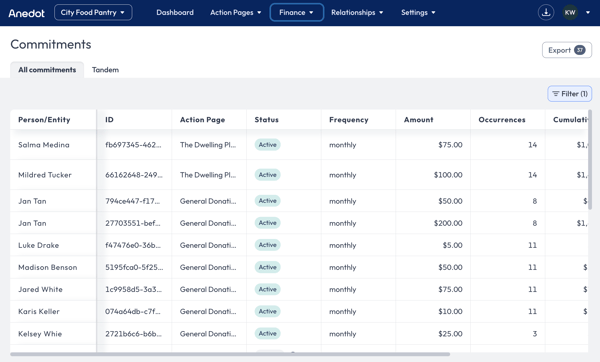
The Commitments tab provides a centralized view of recurring donations—which process automatically on a fixed schedule. This tool is ideal for managing long-term donor support and reviewing contribution patterns over time.
Table of Contents
- Credit Card Updater
- Future Pledge Tracking
- Filter Commitments
- View Commitment Details
- Edit a Commitment
- Update Payment Method
- Deactivate or Reactivate Commitments
- Export Commitment Records
- Best Practices
Credit Card Updater
Anedot’s Credit Card Updater automatically refreshes expiring or replaced cards on active recurring donations so gifts keep processing without interruption. If an update cannot be completed automatically, donors are prompted to securely update their card details, helping you prevent accidental lapses in ongoing support.
Future Pledge Tracking
When a donor pledges a future gift, a one-time commitment is created to provide visibility into expected revenue. The commitment is automatically canceled once it has been successfully processed. Adjustments can be made at any time prior to processing, as directed by the donor, including updating the donation amount or canceling the commitment.
To view and track future pledges, go to Finance > Commitments, click Filter, and select Once as the Frequency.
Filter Commitments
To quickly locate specific recurring donations, use the Filter drawer in the upper-right corner of the Commitments tab. The following Filters are available:
-
Status: Active, Retrying, Inactive
- The system retries 4 times before deactivating a commitment.
-
Start/End Date
-
Amount
-
Frequency: Once, Weekly, Biweekly, Monthly, etc.
-
Payment Method: Credit Card, Bank Account, PayPal, Google Pay, Apple Pay
-
Origin Type: Direct (default), Conduit, Tandem
-
Contact Info: First Name, Last Name, Email
Apply Filters
-
Click the Filter button (top-right)
-
Set your desired filter parameters
-
Click Apply Filters
-
Click the X to close the filter drawer and view results
-
(Optional) Click Reset Filters to begin a new search
View Commitment Details
To view an individual commitment:
-
Hover over the donor’s name
-
Click Actions > View
You’ll be able to review the donor’s recurring donation settings, including frequency, amount, and next scheduled charge.
Edit a Commitment
To update donor or payment information:
-
Hover over the donor’s name
-
Click Actions > Edit
-
Make updates in the Edit drawer
-
Click Save before exiting
Note: Fund designations cannot be modified on an active commitment. To change the fund designation, the current commitment must be deactivated, and a new one must be created.
Editable Fields
-
Donor Info: First Name, Last Name, Middle Name, Title, Suffix, Email, Phone, Address
-
Employment: Occupation, Employer
-
Donation Settings:
-
Amount
-
Frequency
-
Day(s) of Month – Set specific days for recurring withdrawals
-
Every (X) Months – Set multi-month intervals (e.g., every 3 months)
-
End After (#) Occurrences – Automatically deactivate after a set number of charges
-
End By Date – Automatically cancel on a specified date
-
Update Payment Method
To update the payment method associated with a donor's active recurring commitment:
- Navigate to Finance > Commitments.
- Use the Filter menu to locate the commitment record by first name, last name, or email address.
- Hover over the donor's name and select Actions > Edit.
- In the Edit Commitment drawer, scroll to the Payment Method.
-
Select one of the following options:
- Edit to update the payment method on behalf of the donor.
- Send donor link to update to send a secure email link allowing the donor to update their payment method directly.
- If editing on behalf of the donor, enter updated payment details:
- Billing Address (required)
- Payment Type: Card or Bank
- Card: Card number, expiration date, CVC
- Bank: Routing number, account number, account type (Personal or Business; Checking or Savings)
- Select Save.
The updated payment method will be applied to the next scheduled withdrawal.
Important Notes
-
Existing payment details are not editable; a new payment method must be entered in full.
- A billing address is required for both card and bank payment methods. When entering a bank account, the billing address must be completed within the card input section.
Deactivate or Reactivate Commitments
To cancel or reactivate a commitment:
-
Hover over the donor’s name
-
Click Actions > Deactivate (or Reactivate if previously canceled)
Canceled commitments can be reactivated using the same method.
Export Commitment Records
To generate a CSV export of commitment data:
-
Click the Export button (top-right of the Commitments tab)
-
Save the file to your device
-
Open in Excel, Google Sheets, or Numbers for analysis
CSV Export Includes: ID, Submission ID, Amount, Occurrences, Cumulative Giving, Action Page Name, Status, Frequency, Donor Details, Created At, Deactivated At, Retrying Status, Cancellation Reason, Next Charge Date
Best Practices
- Encourage Donors to Use Monthly Giving
-
Use commitment language like "Join our giving community" or "Support us year-round" to emphasize long-term impact.
-
Highlight benefits such as convenience, flexibility, and special recognition.
-
- Communicate Value Through Stewardship
- Send regular impact updates (e.g., monthly or quarterly) showing what their ongoing support makes possible.
- Recognize recurring donors with exclusive emails, donor spotlights, or invitations to virtual briefings.
- Always reinforce their role in your mission with every touchpoint.
- Monitor Upcoming Charges and Take Action Early
-
Regularly check the Next Charge column to identify upcoming commitments.
-
Use this insight to proactively reach out to donors with expiring credit cards or known failed attempts.
-
Set internal reminders to review retrying transactions weekly to prevent cancellations.
-
- Track Failed Charges and Retrying Commitments
-
Filter by Status = Retrying to monitor at-risk donors.
-
Follow up personally with donors after the second or third failed attempt to offer help and reinforce value.
-
Send payment update links to donors with outdated payment methods to prevent failed charges.
-
Avoid waiting for the automatic 4th failure before taking action.
-
- Segment and Report on Commitment Behavior
-
Export commitment data monthly and analyze:
-
Frequency of giving (e.g., monthly vs. quarterly)
-
Average commitment size
-
Cancellation trends
-
-
Use this data to adjust messaging, cadence, or default settings in your donation forms.
-
- Customize Commitment End Dates Strategically
-
For campaigns tied to time-limited initiatives (e.g., school year, fiscal year), use the “End After” or “Until” fields to automatically close commitments.
-
This reduces donor fatigue and simplifies accounting.
-