
As part of ongoing security enhancements, Anedot is strengthening how users access their accounts. Beginning February 16, 2026, users will be prompted during login to verify their email address and update their password in preparation for upcoming security improvements. This article provides step-by-step instructions to help you complete these updates and maintain uninterrupted access to your account.
Users must have access to the email address associated with their login credentials. If you do not have access to the email used to log in, an account Admin will need to invite you as a new user to the Anedot account. Click here to learn more.
Table of Contents
Verify Your Email & Update Password
Complete the steps below to verify your email address and reset your password:
Step 1: Sign In
-
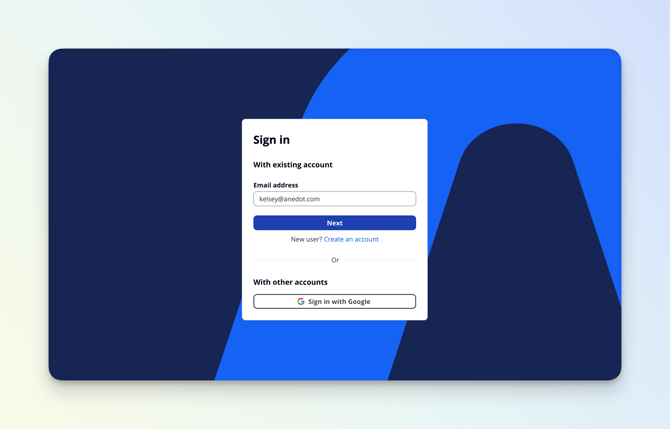
Go to Anedot.com/login to Sign In.
-
Enter your Email Address OR Sign In with Google.
-
Google Sign In is only available for Gmail users.
-
If you receive the following error: “Invalid input: User does not exist” click here to Create an Account.
-
-
Click Next.
Step 2: Reset Your Password
- Enter your Email Address.
- Click Reset my password.
- Check your email inbox for a 6-digit verification code.
- Enter the verification code.
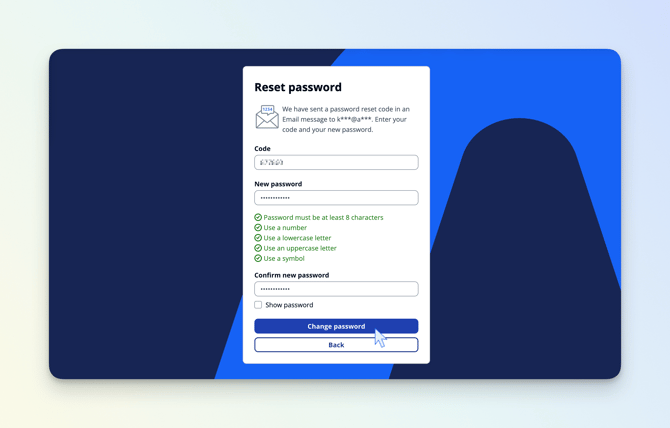
- Create a new password that meets the requirements:
- At least 8 characters
- 1 number
- 1 lowercase letter
- 1 uppercase letter
- 1 symbol
- Re-enter your new password to confirm.
- Click Change password.
You will be redirected to the Sign In page.
Step 3: Complete Login
- Enter your Email Address.
- Click Next.
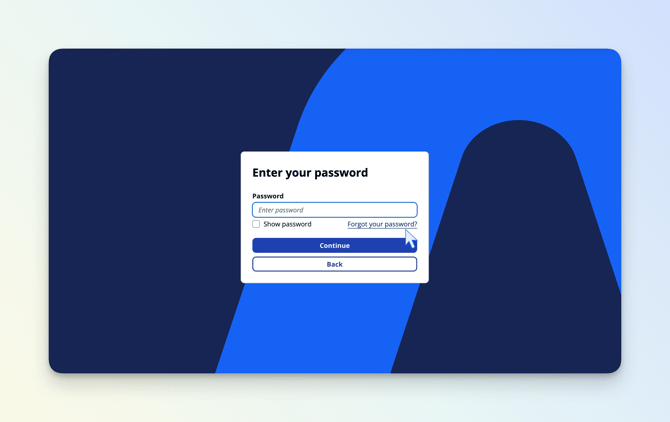
- Enter your new password.
- Click Continue.
Your email verification and password reset is now complete! You will now be logged into your fundraising account(s).
Create an Account
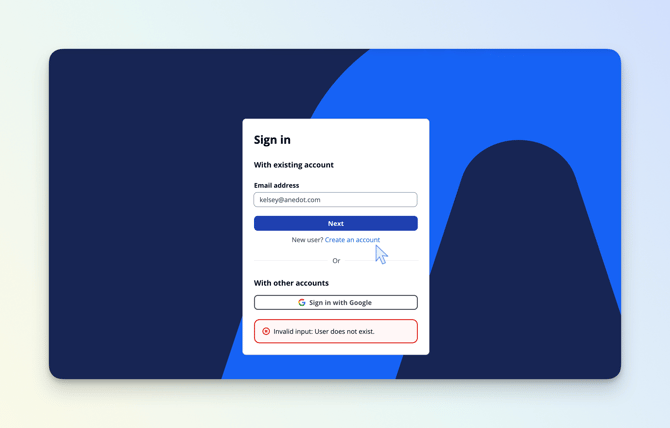
- Go to Anedot.com/login.
- Click Create an account.
- Next, enter your Email Address.
- Use the same email address associated with your fundraising account(s).
- Create a password that meets these requirements:
- At least 8 characters
- 1 number
- 1 lowercase letter
- 1 uppercase letter
- 1 symbol
- Confirm your password.
- Click Sign up.
- Check your email for a 6-digit verification code.
- Enter the verification code.
- Click Confirm account.
Your email verification and password reset is now complete! You will now be logged into your fundraising account(s).
Reset Your Password
The steps below can be used to reset your password after your email has been verified and you’ve completed the initial password update through the new Sign In page.
If you have not yet verified your email or updated your password to meet Anedot’s new login security requirements, please follow the steps under Verify Your Email & Update Password first.
- Go to Anedot.com/login.
- Enter your Email Address.
- Click Forgot your password?
- Enter your Email Address again.
- Click Reset my password.
- Check your email for a 6-digit verification code.
- Enter the verification code.
- Create a new password that meets these requirements:
- At least 8 characters
- 1 number
- 1 lowercase letter
- 1 uppercase letter
- 1 symbol
- Confirm your password.
- Click Change Password.
You will be directed back to the Sign In page. To log in, follow the steps below:
- Enter your Email Address.
- Click Next.
- Enter your new password.
- Click Continue.
You will be directed to your fundraising account(s).
Troubleshooting Verification Issues
-
I received the following error: “Invalid input: User does not exist”
-
This error indicates that the email previously used to access your fundraising account has not yet been verified.
To continue, you’ll need to create a new login using the same email address associated with your fundraising account(s). Your fundraising data has not been lost. This step is required to verify your email and update your password successfully.
Click here for instructions on how to Create an Account.
-
- I do not have access to the email I previously used to log in.
- Users must have access to the email address associated with their login credentials to meet Multi-Factor Authentication requirements.
If you do not have access to the email that you previously used to log in to your Anedot account, you will need to be invited as a new user by an account Admin with an email you do have access to. Click here for further instructions.
- Users must have access to the email address associated with their login credentials to meet Multi-Factor Authentication requirements.
-
I’m not receiving the verification code.
- Check your spam or junk folder. The verification code is sent from noreply@anedot.com.
- Click Resend Code.
- Contact Anedot Support for further assistance.